recaplica
Clear in 30 seconds, yours in 10 minutes.
In 30 seconds quick read
Every PC and every Mac quietly fills up with files nobody uses anymore: app and browser caches, temporary files, leftovers from system updates, forgotten downloads. Windows and macOS both include built-in tools to clean the disk without installing any third-party software: on Windows they're called Disk Cleanup and Storage Sense, on Mac it's the Storage panel with three optimization recommendations you can turn on one by one. Using them well means knowing exactly what they delete, and on Windows also which folder is best left alone right after an update.
Key Points
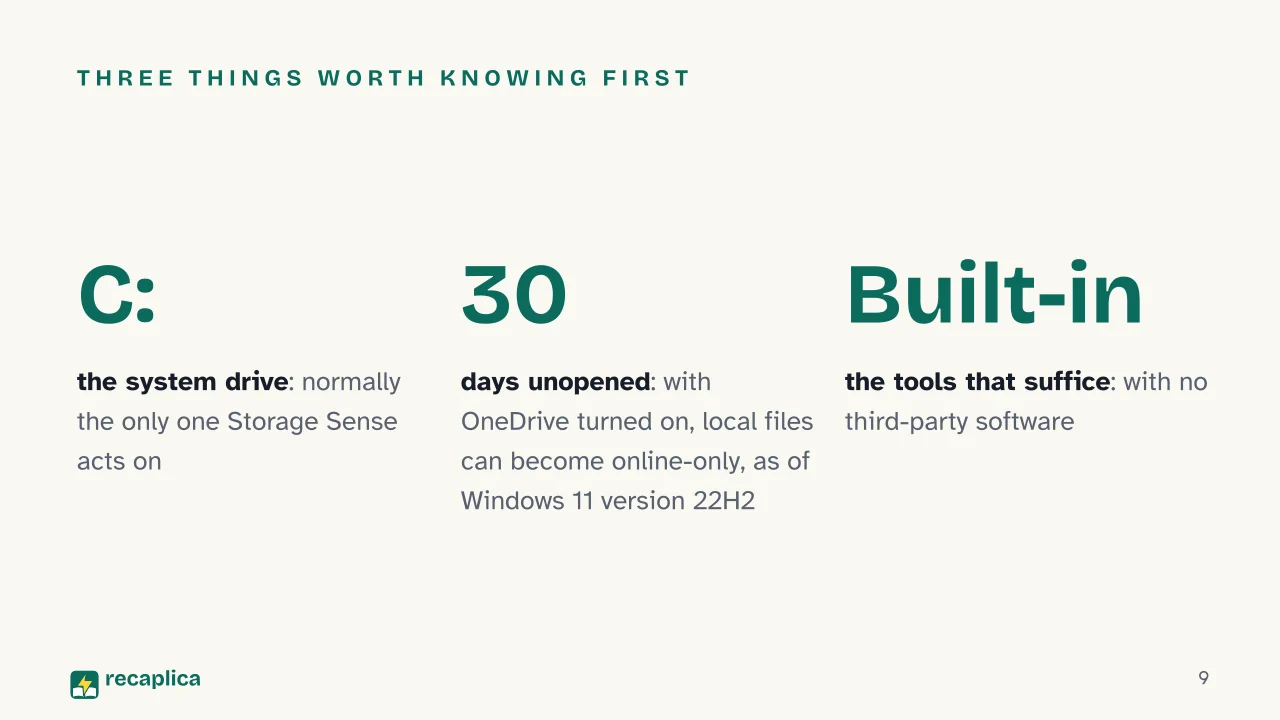
Windows has two separate built-in tools: Disk Cleanup, manual and long-standing, and Storage Sense, automatic but off by default and normally limited to the system drive (C:).
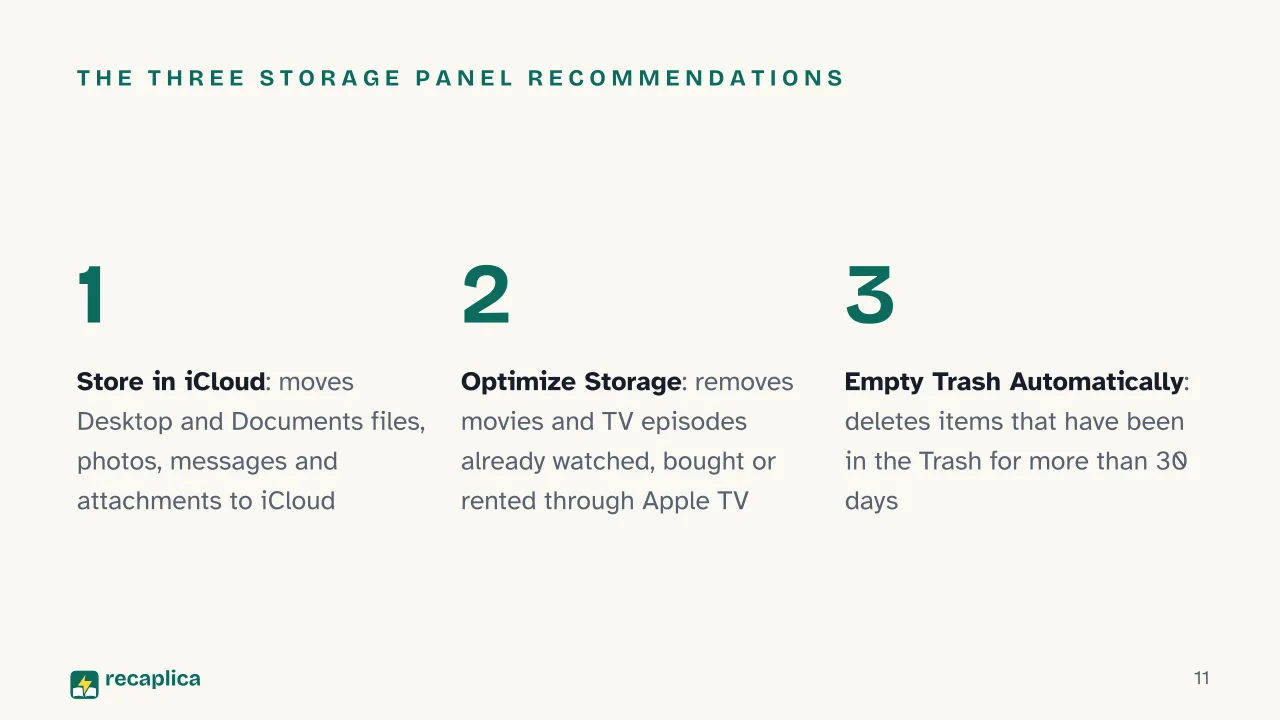
macOS bundles everything into one Storage panel with three recommendations you can enable individually: Store in iCloud, Optimize Storage, and Empty Trash Automatically (after 30 days).
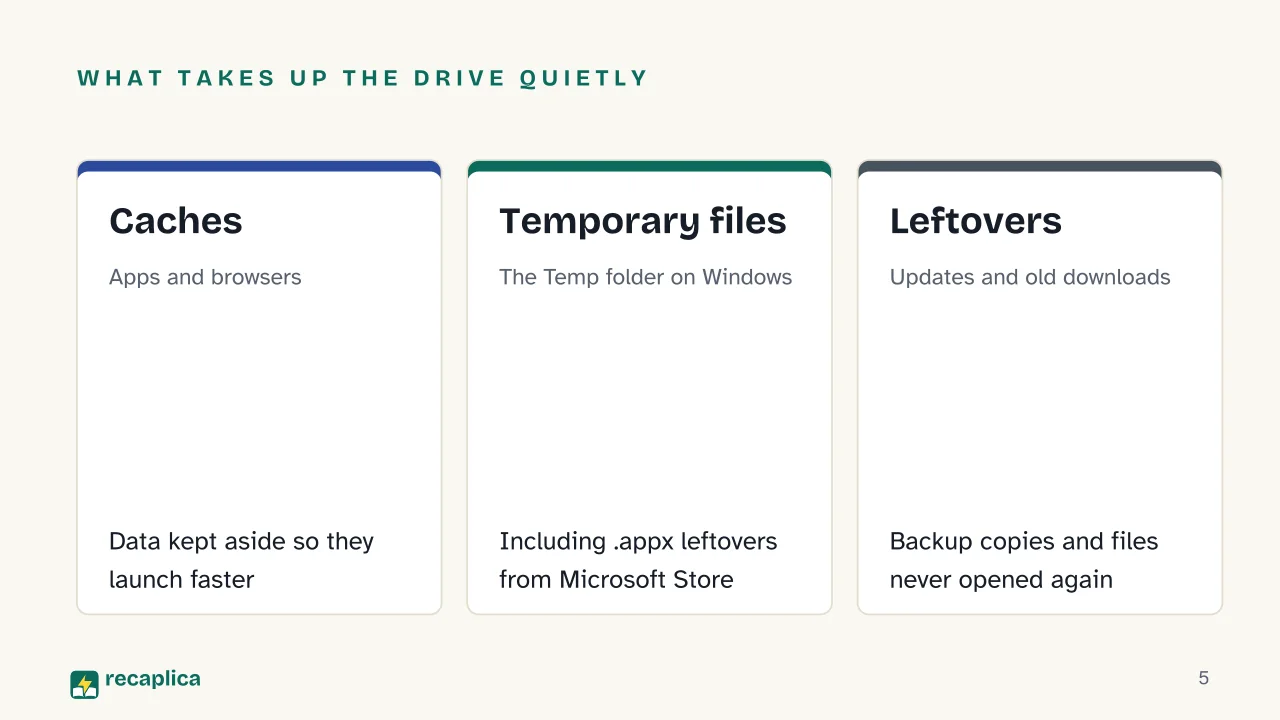
The files that pile up most without anyone noticing are system and browser caches, temporary files, update leftovers, and old or duplicate downloads.
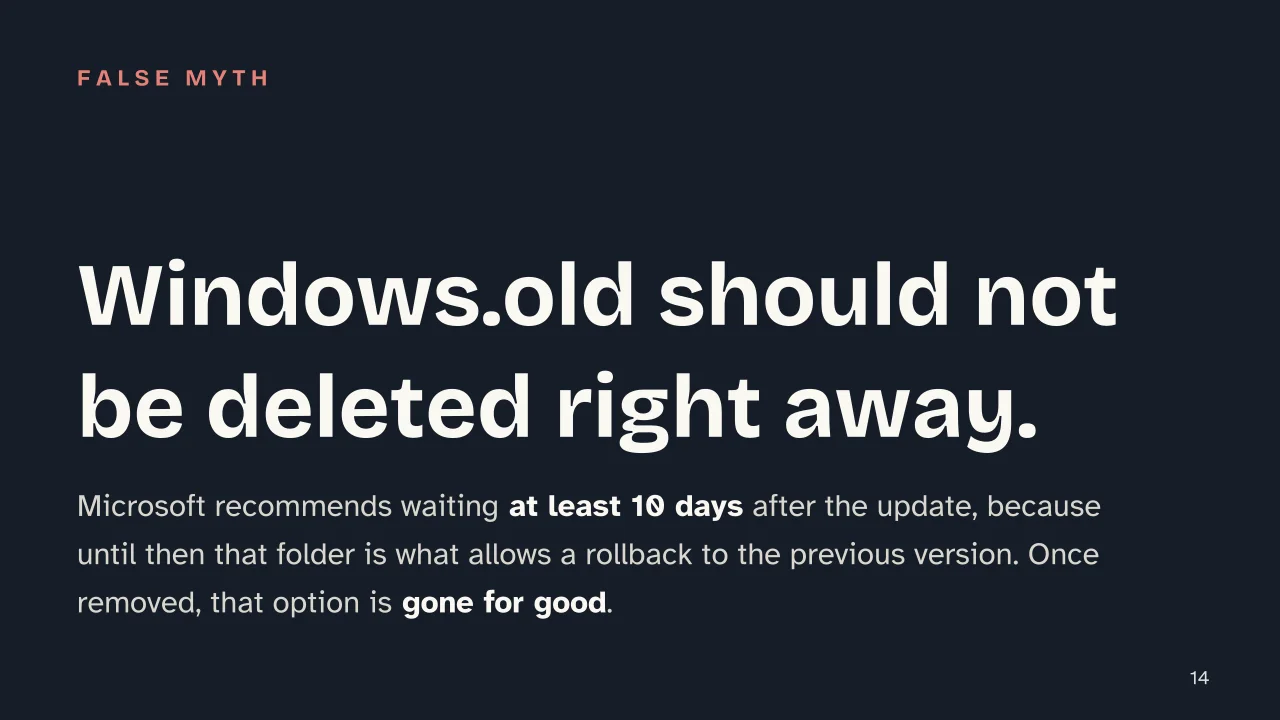
Deleting the Windows.old folder within 10 days of a Windows update removes the option to roll back to the previous version of the operating system.
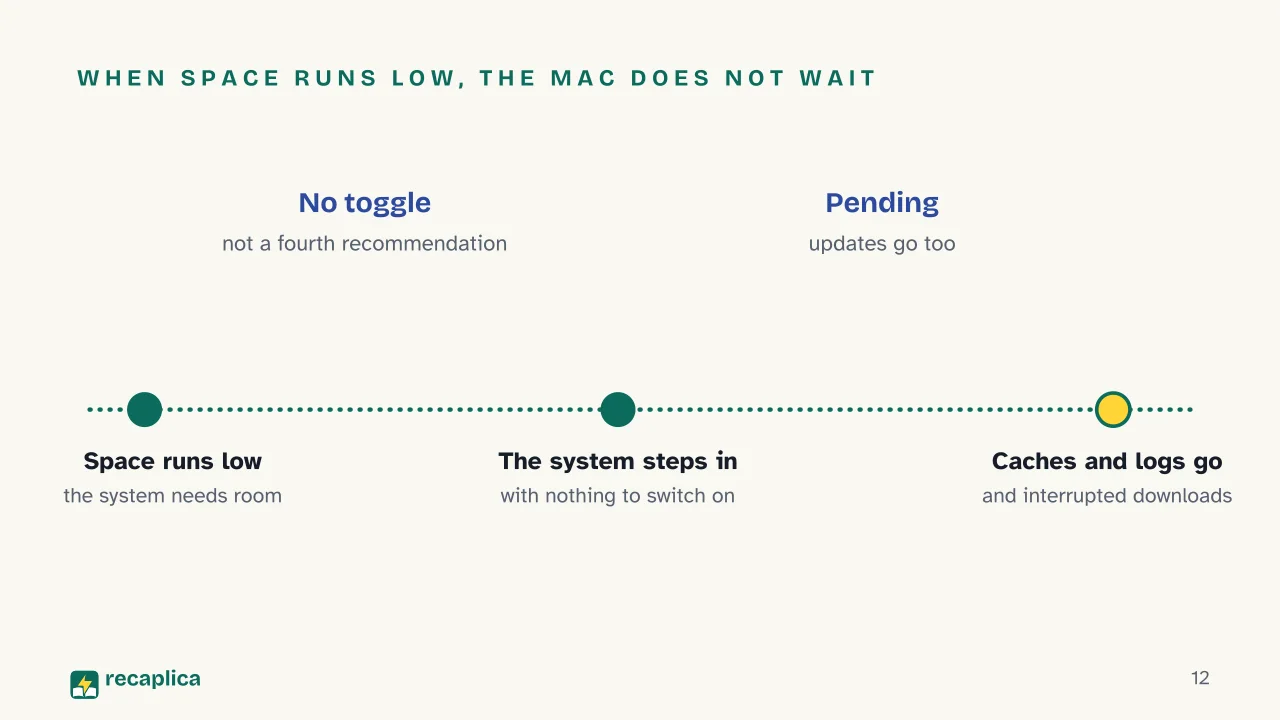
Beyond the three recommendations, macOS frees up caches, logs, interrupted downloads, and pending updates on its own whenever the system needs space, without the user turning anything on.
A virus scan is a useful check when storage runs out for no obvious reason, since malware can also take up significant space on a drive.
Key figures
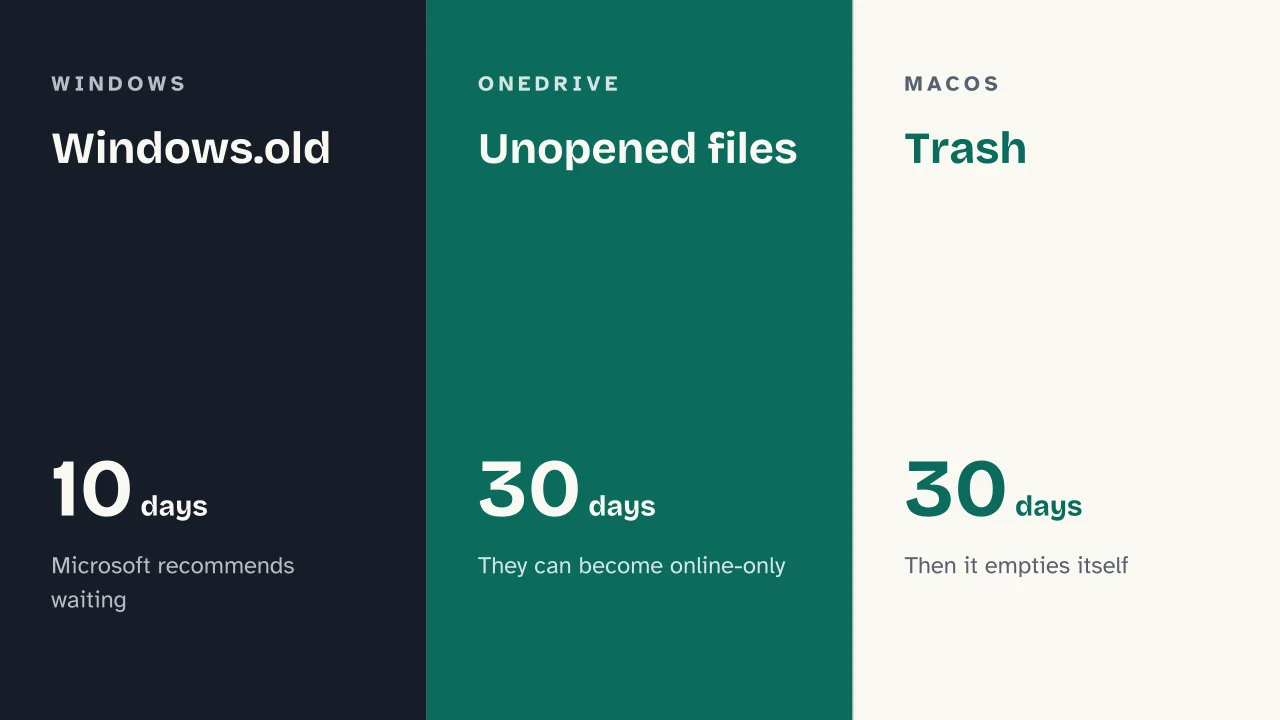
30 days the threshold after which macOS automatically empties the Trash, once "Empty Trash Automatically" is turned on in the Storage panel Source: Apple Support, Optimize storage space on your Mac
10 days the minimum wait Microsoft recommends before deleting the Windows.old folder after a Windows update, to keep the option of rolling back to the previous version of the system Source: Microsoft Support, Free up drive space in Windows
30 days of inactivity as of Windows 11 version 22H2, with OneDrive turned on, local files unopened for this long can become "online-only," freeing up disk space while staying available to download on demand Source: Microsoft Support, Manage drive space with Storage Sense
Deep Dive
Where all that clutter comes from
Nobody deliberately fills a drive with digital junk: it happens one file
at a time. Apps leave behind caches so they can launch faster, browsers
pile up temporary data from every page visited, the operating system
keeps backup copies of updates in case something goes wrong, and the
Downloads folder fills with files opened once and never touched again.
Any single one of these is small on its own; added together, they can
account for a good chunk of the space that seems to have vanished for no
reason.
Both Windows and macOS ship with built-in tools built for exactly this,
with no need for third-party cleaning software. The underlying logic is
the same — find and remove files that no longer serve a purpose — but the
approach differs: Windows keeps a long-standing manual tool separate from
a newer automatic one, while macOS combines both into a single panel with
three switches, plus an automatic cleanup of caches and log files the
system runs on its own.
Windows: Disk Cleanup and Storage Sense
Windows offers two distinct routes, and it’s easy to mix them up since
they do similar things under different names.
Disk Cleanup is the manual tool that has shipped with Windows for
many versions: type its name into the taskbar search bar, pick the drive
to scan, select the file categories to remove, and confirm. It’s a
one-off action, run whenever it’s needed. On Windows 11, the equivalent
feature built into Storage settings is called “Cleanup recommendations.”
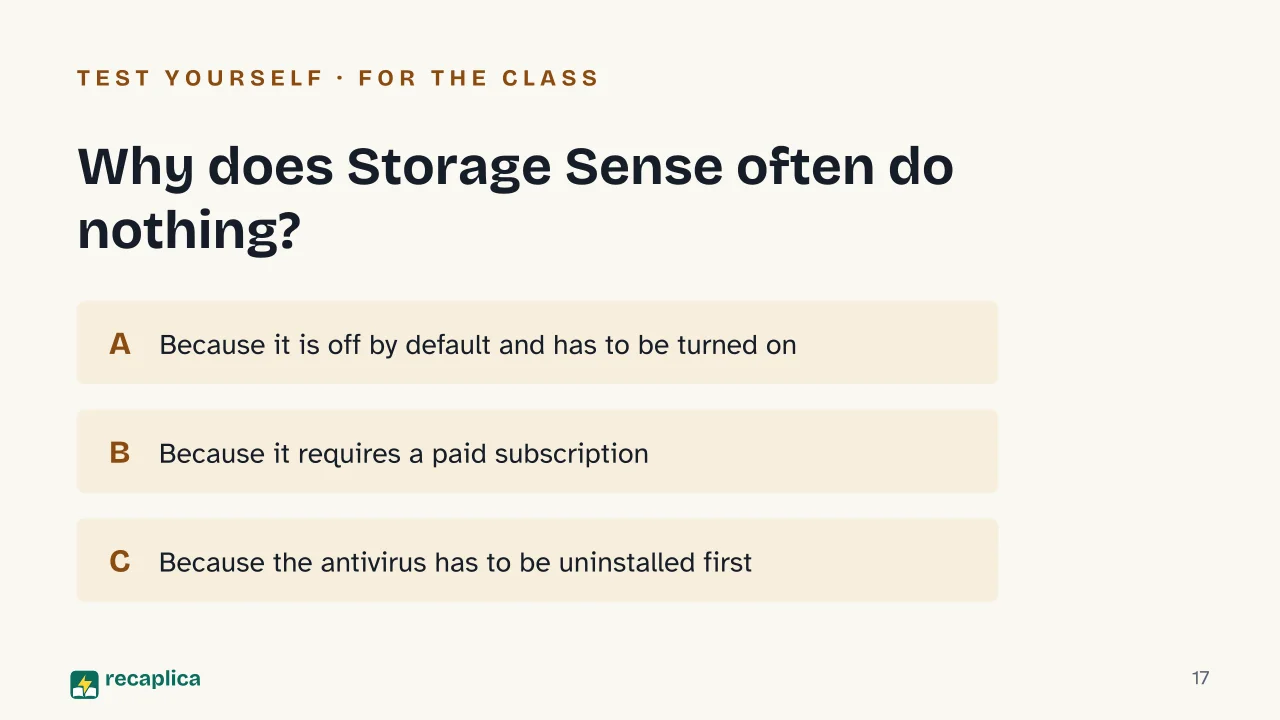
Storage Sense, on the other hand, is meant to work automatically in
the background, but with a catch that explains why plenty of people
assume it’s broken: it’s off by default. It has to be turned on manually
from Start > Settings > System > Storage > Storage Sense. Once active,
with default settings it clears temporary files and system caches, plus
Recycle Bin contents after a period the user can customize; the same
applies to files in the Downloads folder that haven’t been opened for a
set number of days. One practical limit worth keeping in mind: Storage
Sense normally only acts on the system drive (C:), not on other drives
connected to the computer.
Practical example: an “insufficient disk space” error that pops up
out of nowhere, without the user having downloaded anything,
is often tied to the Temp folder filling up with .appx application
files from Microsoft Store — one of the typical causes of a full drive,
along with system caches and old installation files that Disk Cleanup
helps find and remove.
As of Windows 11 version 22H2, if OneDrive is turned on, another
mechanism kicks in: local files unopened for 30 days can become
“online-only,” meaning they disappear from the local drive to free up
space but stay available to download at any time — a change of state
that affects only the local copy, not the file itself.
macOS: the Storage panel and the three recommendations
On macOS Ventura 13 and later, the starting point is Apple menu > System
Settings > General > Storage (on earlier versions: Apple menu > About
This Mac > Storage). The panel shows a breakdown of disk usage by
category — Applications, Documents, Messages, Music, Podcasts, TV, Trash,
and a general “System Data” entry that covers Apple and third-party
system files. For several of these categories there’s also an “More
Info” button that shows the detail and lets you act directly.
Beyond manual review, the same panel offers three automatic
recommendations, each switchable on its own:
Store in iCloud: moves Desktop and Documents files to iCloud
Drive, photos and videos to iCloud Photos, and messages and
attachments to iCloud, leaving only recent or lightweight versions on
the Mac, downloadable on demand.
Optimize Storage: automatically removes movies and TV episodes
already watched that were bought or rented through Apple TV, and
keeps only the most recent email attachments when space is needed.
Empty Trash Automatically: deletes items that have been in the
Trash for more than 30 days.
Alongside these three named recommendations, macOS handles another part
of the cleanup on its own: when the system needs space, it automatically
clears caches, log files, interrupted downloads, pending updates, and
Safari cache data, without anything to switch on in the Storage panel.
It’s a system behavior, not a fourth recommendation with its own toggle.
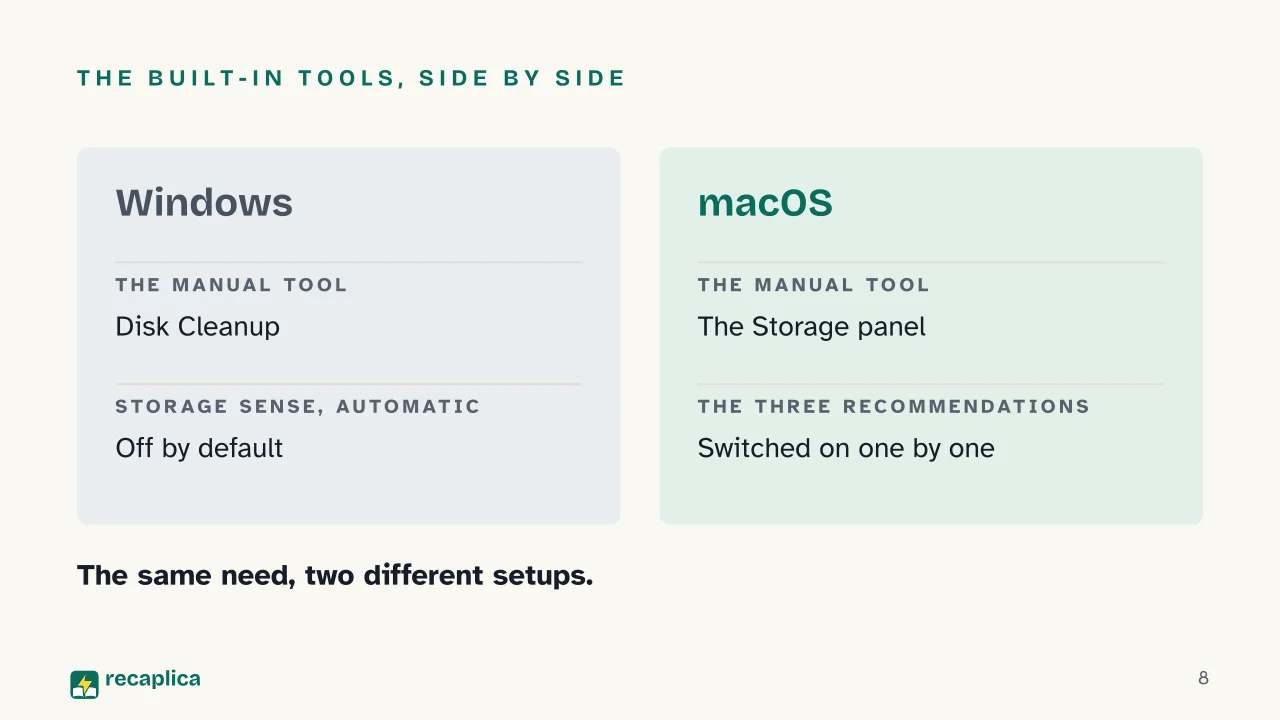
Windows vs. macOS: same need, two different setups
Aspect
Windows
macOS
Manual tool
Disk Cleanup
Storage panel with per-category detail
Automatic tool
Storage Sense (off by default)
The three optimization recommendations (individually switchable)
Deleted by default
Temporary files, system caches, Recycle Bin contents after a period
Trash emptied after 30 days; caches, logs, and interrupted downloads when space is needed
Practical limit
Normally acts only on the system drive (C:)
Recommendations are switched on individually from the Storage panel
What it does on its own, with nothing switched on
Nothing, as long as Storage Sense stays off
Clears caches, logs, and interrupted downloads when space runs low
Good habits and risks to avoid
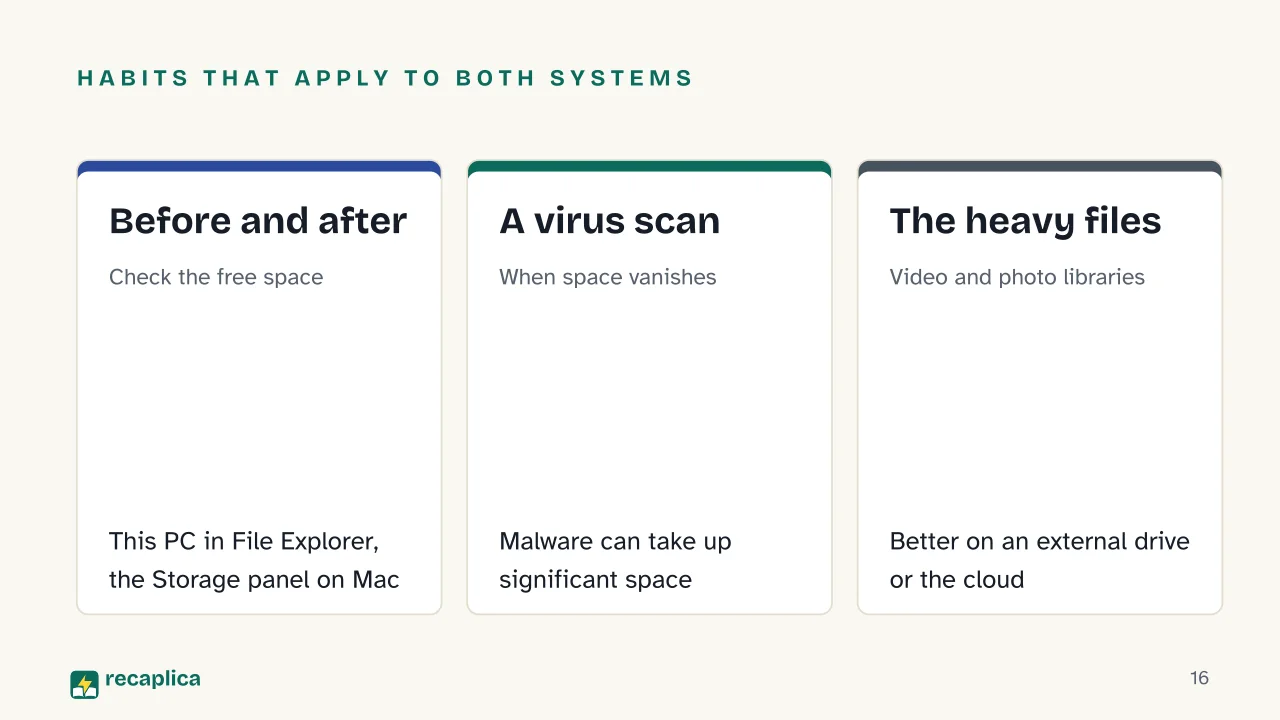
A few habits apply to both systems. Checking free space before and after
a cleanup — under “This PC” in File Explorer on Windows, in the Storage
panel on Mac — makes it possible to confirm what an action actually
accomplished. A virus scan, when a drive is full without an obvious
explanation, can reveal a cause that’s easy to overlook: malware, too,
can take up significant space. And the heaviest media files, like video
and photo libraries, are good candidates for moving to an external drive
or a cloud service instead of piling up on the local disk, sending the
bulkiest data off to remote servers rather than leaving it parked in one
place.
One risk deserves particular attention because the mistake can’t be
undone: on Windows, the Windows.old folder holds the files from the
previous version of the operating system after an update. Microsoft
advises against deleting it before 10 days have passed, since until then
it’s what allows a rollback if something goes wrong; once removed, that
recovery option is gone. Another common mix-up, less serious but
frequent, is confusing “Cleanup recommendations” with Storage Sense: on
Windows 11 that feature is the counterpart to Disk Cleanup, not to the
automatic tool, and anyone who runs it expecting background cleanup ends
up still having to launch it by hand.
One last note has more to do with ongoing maintenance than one-off
cleanups: turning on Storage Sense on Windows or the optimization
recommendations on Mac turns cleanup into a continuous process instead of
a chore repeated every time the drive fills up again. The same logic of
regular upkeep applies to any home appliance that works automatically:
thinking about a robot vacuum
cleaner, which needs regular
brush checks to keep its motors from overheating, helps frame the same
principle applied to a computer’s drive.
Slide deck
Slides ready to download and make your own in PowerPoint or Google Slides, with speaker notes. Pick the Flash cut or the Full one.
✗ Myth Having Storage Sense installed on Windows is enough for the system to start freeing up space on its own.
✓ Reality No: Storage Sense is already present on the system, but it's off by default. Unless it's turned on manually from Settings > System > Storage > Storage Sense, it won't delete anything automatically, no matter how full the drive gets.
✗ Myth If a Windows PC has just updated and storage is full, it's fine to delete the Windows.old folder right away to get the space back.
✓ Reality Microsoft recommends waiting at least 10 days after the update before touching that folder, because it's what allows a rollback to the previous version of the operating system if something goes wrong. Once it's deleted, that recovery option is gone for good.
✗ Myth On Mac, clearing caches and log files needs a fourth switch, separate from the Storage panel recommendations.
✓ Reality No: that cleanup isn't a recommendation with its own toggle. Apple describes it as an automatic system behavior that kicks in on its own when space is needed; the only three settings you switch on individually from the Storage panel are Store in iCloud, Optimize Storage, and Empty Trash Automatically.
Mind map
Drag the background to move around and the nodes to reposition them; use − and + to collapse and expand branches.
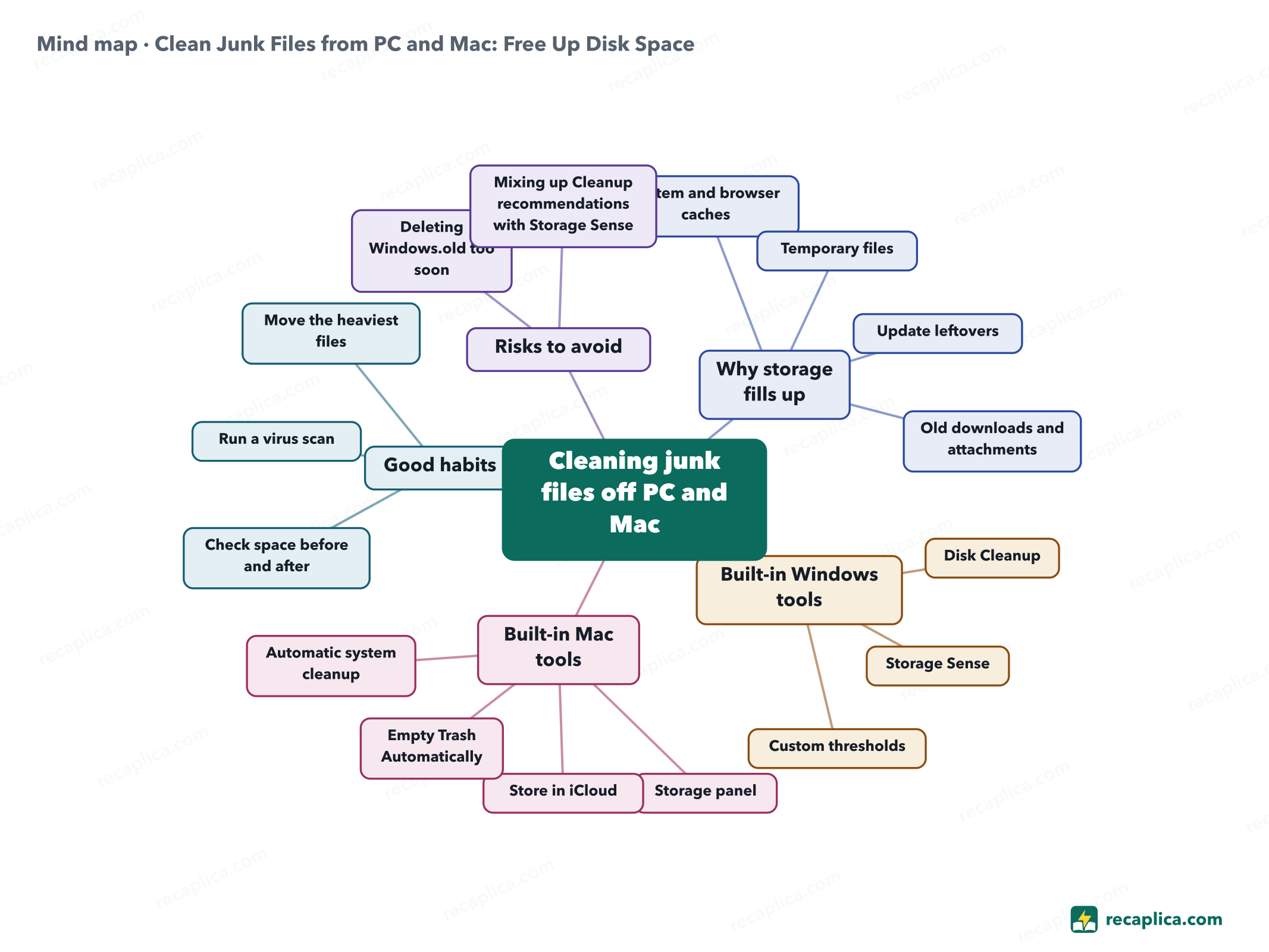
Temporary filesOn Windows, often leftover .appx files from Microsoft Store in the Temp folder
Update leftoversWindows.old on Windows, pending updates on macOS
Old downloads and attachments
Built-in Windows tools
Disk CleanupThe manual tool, organized by file category
Storage SenseAutomatic, off by default, normally acts only on the system drive
Custom thresholdsDays in the Recycle Bin and days unopened in the Downloads folder
Built-in Mac tools
Storage panelA breakdown of disk usage by category
Store in iCloudMoves Desktop, Documents, photos, and messages to iCloud
Empty Trash AutomaticallyAfter 30 days from deletion
Automatic system cleanupCaches, logs, interrupted downloads, pending updates, with no dedicated switch
Good habits
Check space before and after"This PC" in File Explorer on Windows, the Storage panel on Mac
Run a virus scanMalware can take up significant space
Move the heaviest filesVideo, photos, and music to external or cloud storage
Risks to avoid
Deleting Windows.old too soonBefore 10 days from the update
Mixing up Cleanup recommendations with Storage SenseOn Windows 11 it's the counterpart to Disk Cleanup, not the automatic tool
Quiz: test yourself
Answer the questions to check what you have learned: you get instant feedback and a short explanation.
Grade0/100/5
Answers: 1-A · 2-B · 3-A · 4-A · 5-A
Flashcards
Tap the card to flip it and check whether you remember the answer, then move to the next one.
1 / 8
Explain it in your own words
The ultimate test: if you can explain it in simple words, you've truly understood it. Write your explanation, then compare it with the Recap.
Your explanation is saved only on this device.
Every PC and every Mac quietly fills up with files nobody uses anymore: app and browser caches, temporary files, leftovers from system updates, forgotten downloads. Windows and macOS both include built-in tools to clean the disk without installing any third-party software: on Windows they're called Disk Cleanup and Storage Sense, on Mac it's the Storage panel with three optimization recommendations you can turn on one by one. Using them well means knowing exactly what they delete, and on Windows also which folder is best left alone right after an update.
Frequently asked questions
How do I free up space on Windows without deleting files by hand?
The easiest way is turning on Storage Sense from Settings > System > Storage: it's off by default, but once enabled it automatically clears temporary files, system caches, and Recycle Bin contents after a period you choose, without touching the Downloads folder or OneDrive files unless you set that up explicitly.
Why does Storage Sense seem not to work even though it's already installed?
Because on Windows it's off by default and does nothing until you turn it on manually from Settings > System > Storage > Storage Sense, where you can also set thresholds for the Recycle Bin and the Downloads folder.
How can I see how much space apps and files take up on a Mac?
Through the Storage panel: on macOS Ventura 13 and later it's under the Apple menu > System Settings > General > Storage; on earlier versions, Apple menu > About This Mac > Storage. It shows a breakdown of disk usage by category, with details for Applications, Documents, Messages, Music, Podcasts, Trash, and TV.
Is it safe to delete the Windows.old folder after a Windows update?
It depends on how much time has passed. Microsoft advises against deleting it before 10 days from the update, because until then it's what lets you roll back to the previous version of the system; once deleted, that option is gone for good.
Does macOS free up space on its own, without me doing anything?
Partly, yes. Beyond the three Storage panel recommendations, which have to be switched on individually, macOS clears caches, log files, interrupted downloads, and pending updates on its own whenever the system needs space, with nothing for the user to set up.
Every Recap goes through an independent review before publication.
Statistics, only if you say so
To learn which Recaps help most we would use Google Analytics, with aggregate, anonymous data. It starts only with your OK, and you can change your mind anytime. Privacy policy